
Bridge Assistant
Add Bridge meetings to Google Calendar events with the Bridge add-on
The Bridge add-on for Google Calendar puts Bridge in the Add video conferencing field of your calendar events, so each event gets a Bridge meeting link. Install it from the Google Workspace Marketplace, sign in to Bridge the first time you add a meeting, and ask a Google Workspace admin if you want Bridge as the default for everyone. Guests join from the link without a Bridge account.

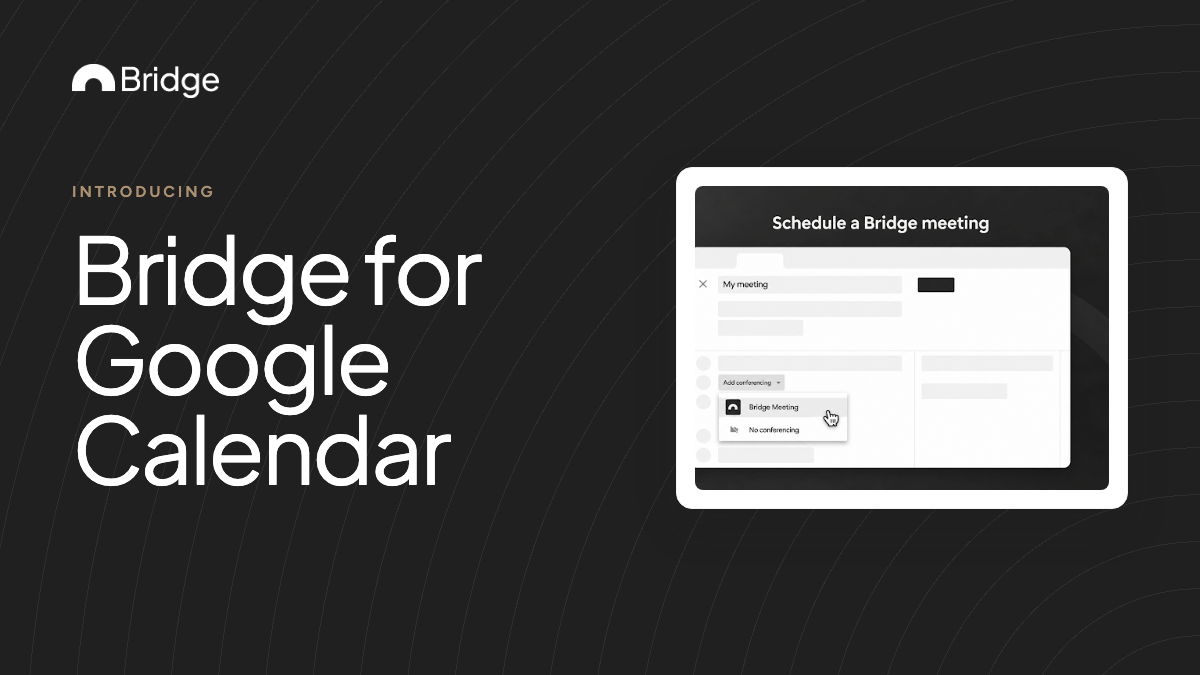
What the add-on does
The add-on lets you create Bridge meetings where you already schedule: inside a Google Calendar event. Once it's installed, Bridge appears as an option in the event's Add video conferencing field, and choosing it adds a Bridge meeting link to the event.
Your guests get the link in their invitation like any other video call. When the meeting starts, it runs on Bridge, with live transcription, notes and the in-meeting Assistant.
Install the add-on from the Google Workspace Marketplace
You can open the listing from Bridge or find it on the Marketplace directly. It is listed as Bridge, and its description reads "Use Bridge to easily schedule, join, and manage AI meetings from Google Calendar".
- In Bridge, select New → Meeting on Bridge → Add links to Google Calendar. This opens the Bridge add-on on the Google Workspace Marketplace.
- Select Install and follow Google's prompts for the Google account whose calendar you use.
- When it finishes, Google shows "Bridge has been installed!" and adds Bridge to your Calendar sidebar.
Add a Bridge meeting to a calendar event
Create or open an event in Google Calendar as usual. Open the Add video conferencing field and choose Bridge instead of Google Meet.
The first time you add a Bridge meeting, you're prompted to log in to your Bridge account. You only do this once; after that, you're all set.
Save the event and invite people as you normally would. The Bridge link travels with the invitation.
Make Bridge the default for your organization (Workspace admins)
Making Bridge the default video conferencing app needs a Google Workspace admin account. Personal Gmail accounts can't change the default, so they pick Bridge per event.
The change has two parts. First, turn off Google Meet as the default in the Google Admin console:
- Go to admin.google.com.
- Open the menu (≡) and select Apps → Google Workspace → Google Meet.
- In the dropdown, select OFF for everyone, then select Save.
Then turn on automatic video calls in Calendar
With Google Meet off, set Calendar to add video calls to new events automatically:
- Go to admin.google.com.
- Open the menu (≡) and select Apps → Google Workspace → Calendar.
- Select Sharing Settings, then Video Conferencing.
- Check Automatically add video calls to events users create, then select Save.
| After the change | What users see |
|---|---|
| The conferencing button on new events | It reads Add video conferencing |
| Selecting it | Bridge meeting details fill in automatically, as long as Bridge is the only video conferencing app installed |
What guests see when they join
Guests don't need a Bridge account. They open the link from the invitation and land in a lobby showing the meeting title and your name.
- They enter a display name and, optionally, an email address.
- They preview their camera, toggle their microphone and camera, and pick devices.
- If they enter an email, Bridge sends a six-digit code. A match with the calendar invite shows Invitation recognized; any other confirmed address shows Email verified.
- They select Request to join and see "Waiting for the host to let you in…" until they're admitted.
- Anyone who would rather not verify can select Continue as guest.
Recognize verified guests from the calendar invite
When your calendar is connected to Bridge, Bridge matches a verified guest's email against the calendar event's invite list. A recognized guest appears under their real name and email, not just a display name.
That match uses the Google Calendar connector, not the add-on, so connect your calendar in Bridge as well (see the next section). Under Account settings → Connectors → Calendars, choose Google Calendar and sign in.
Verified guests count as invited participants, so your meeting access setting (Open, Trusted or Restricted) applies to them. Either way, you still choose whether to admit each person waiting in the lobby.
The add-on is not the Google Calendar connector
These are two separate Google Calendar links, and you can use both. The add-on lives inside Google Calendar and puts Bridge meeting links on events. The calendar connector lives inside Bridge and reads your upcoming events for meeting briefs and calendar workflows.
Set each one up on its own: the add-on from the Google Workspace Marketplace, the connector from inside Bridge.
Other ways to put a Bridge link on an event
If you can't install the add-on, or you schedule in Microsoft Outlook, start from Bridge instead:
- New → Meeting on Bridge → Schedule on calendar opens Google Calendar or Microsoft Outlook with a unique Bridge link already on the event.
- New → Meeting on Bridge → Create meeting link gives you a link to paste into any calendar event.
Plan limits for the meetings you schedule
Hosting Bridge meetings is included on every plan, and your plan sets the size and length of each meeting. Check these before a large external call:
| Plan | Participants per meeting | Length per meeting |
|---|---|---|
| Starter (free) | 5 | 60 minutes |
| Professional | 25 | 8 hours |
| Business | 200 | 24 hours |
| Enterprise | 1,000 | No time limit |