
Bridge Assistant
How to present in a Bridge meeting: screens, slides and controls
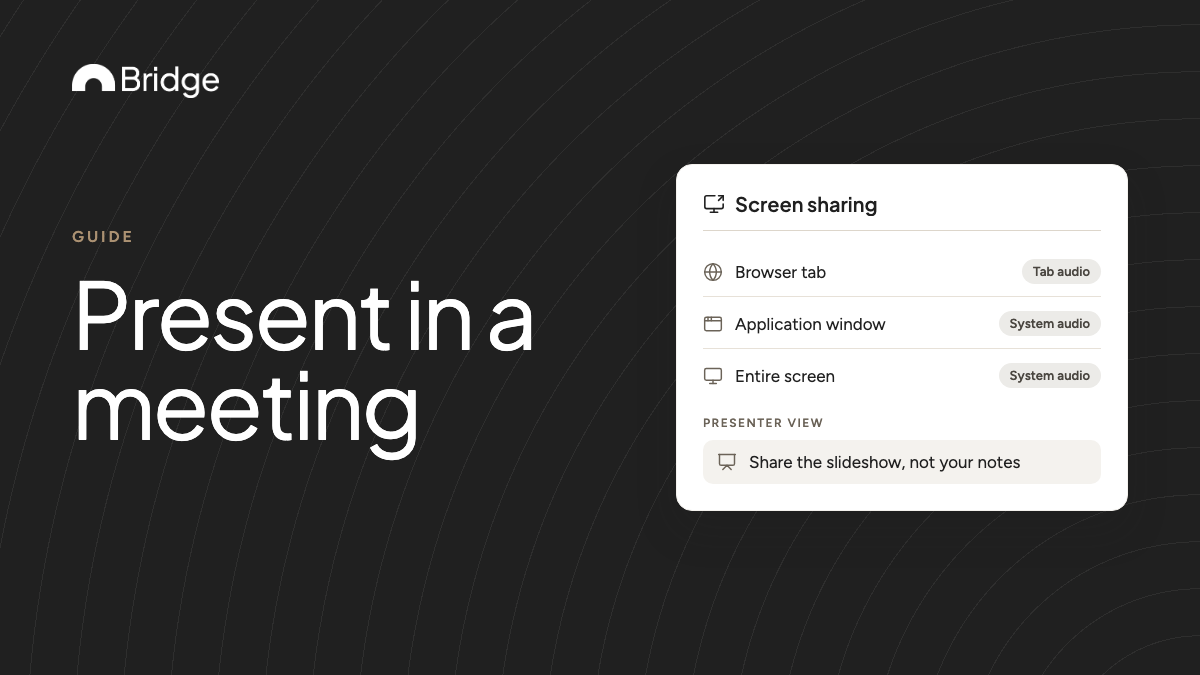
To present in a Bridge meeting, select Screen sharing on the bottom control bar and pick a browser tab, an application window or your entire screen, with tab or system audio if you need it. For Google Slides or PowerPoint, use Presenter View and share the slideshow, not the Presenter View window. As host, Participant controls decide whether anyone else can share, chat or record.

What happens while you share
Everyone sees your share in the video grid, including guests who joined without a Bridge account. More than one participant can share at the same time.
If you open picture-in-picture, shared screens appear above participant tiles and are never cropped. A "You're presenting" indicator reminds you that your screen is live.
- Pick Sidebar or Spotlight from Layout in session preferences if you want the speaker large.
- Hide panels you don't need from More options, so the share gets more room.
- When a recording is running, it includes screen shares.
Present slides with Presenter View
Bridge supports Presenter View when you share a Google Slides or Microsoft PowerPoint tab or window. Your speaker notes stay private, and participants see only the slides.
The one thing to get right is which window you share:
- Start the slideshow in Presenter View in Slides or PowerPoint.
- In Bridge, select Screen sharing and choose the slideshow tab or window.
- Don't choose the Presenter View window itself, or everyone sees your notes.
- If the deck plays video with sound, turn on tab audio or system audio when you share.
Keep the audience involved without interrupting
Presenting doesn't mean talking into silence. People can respond while you keep going:
- Chat: messages go to everyone in the meeting, and people can share links or attach files up to 15 MB.
- Reactions: emojis float on screen for all participants, so you see agreement without stopping.
- Raise hand: shows on the person's video tile and in the Participants panel, so you can take questions at a natural pause.
Decide who else can share, chat and record
Participant controls turn one capability on or off for the meeting. Some apply to everyone, and some leave the host's own access untouched. Only the host sees these controls.
| Control | What it turns on or off | Applies to the host? |
|---|---|---|
| Screen share | Whether participants can share their screen | No, you can always share |
| Recording | Whether participants can start or stop recording | No |
| Chat | Chat for the whole meeting | Yes |
| Artifacts | Whether the live organized notes are visible | Yes |
| Participant management | Whether participants can invite, admit, deny or remove people | No |
| Hide panels | Whether participants join with every panel closed | No |
Four places to set Participant controls
Open Host controls, then Participant controls, from any of these:
- Account preferences, in the Meetings on Bridge section, for your defaults.
- Session preferences at the top of the meeting, or in the meeting's Brief before it starts.
- More options on the bottom control bar, during the meeting.
- The meeting link card in the Meeting Links tab on the Scheduling page, for one reusable link.
Which setting wins
Host controls inherit in order: account preferences, then the meeting link, then session preferences. A link's controls apply every time that link is used.
Session changes apply only to the current meeting, and you can change them at any time during the call. That lets you open up screen sharing for one guest, then turn it off again.
Example run-through: a product demo for external guests
This example is illustrative. Acme's account executive, Maya, demos the product to three people from Northwind, who join as guests.
- Before the call, Maya opens the meeting's Brief and sets Participant controls: screen share and recording off for participants, chat on.
- She checks access too, so Northwind's team gets in without her watching a queue mid-demo.
- She opens with six slides in Presenter View and shares only the slideshow window.
- For the live demo, she switches to sharing the browser tab with the product, with tab audio on for a short video.
- Questions arrive in chat and as raised hands. She answers them at the end of each section.
- Northwind's engineer wants to show their current setup. Maya turns on screen share for participants, then turns it off afterward.
- After the call, the recording includes both screen shares, and the notes include a summary, decisions and follow-ups.
Before you present
Bridge runs in the browser and is optimized for Google Chrome, Apple Safari and Microsoft Edge. Close tabs and windows you don't want on screen before you share your entire screen.
If you're a participant rather than the host, Screen sharing works only when the host allows it. Ask them to turn it on before your slot.
Sources & further reading
- Bridge help center: Live meeting collaboration (screen sharing, Presenter View, participant controls) ↗
- Bridge help center: Hosting meetings (control bar, host controls, meeting-level settings) ↗
- Bridge help center: Attending meetings ↗
- Bridge help center: Guest experience ↗
- Bridge help center: Meeting links (per-link host controls) ↗
- Bridge help center: Platforms ↗
- Bridge changelog: Video Conferencing v2 (11-13-2026) ↗