
Bridge Assistant
How to run breakout rooms in a Bridge meeting
Hosts can now split a Bridge meeting into breakout rooms. You choose 1 to 50 rooms, a duration and how people are grouped: Intelligent, Random or Manual. You can visit any room without leaving the meeting, and Close all rooms brings everyone back to the Main Room.

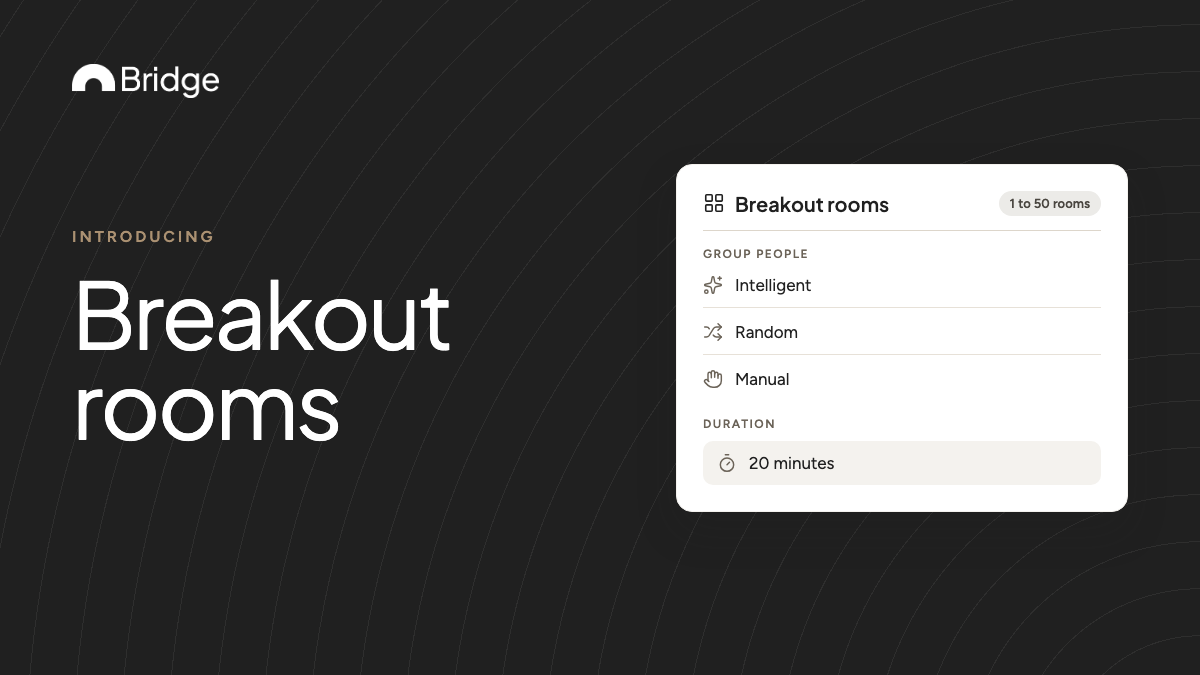
What breakout rooms do in Bridge
A breakout room is a smaller session split off from the main meeting. In Bridge, the host sets rooms up inside the meeting, sends people to them, and can move between rooms while they run.
This guide covers the setup, the three grouping modes, what the host can do while rooms are open, and a plan for a 45-minute workshop.
Set up rooms in the meeting
- As host, open Meeting tools and choose Breakout rooms. You can also open the Breakouts tab next to Participants.
- Choose the number of rooms, from 1 to 50.
- Choose a duration: no limit, 10 minutes, 20 minutes or a custom length.
- Choose how people are grouped: Intelligent, Random or Manual.
- Check the groups. Assign people from the Unassigned list, or leave them in the Main Room.
- Move anyone between rooms before you start, then start the rooms.
Pick a grouping mode
Whichever mode you pick, you can still move people before the rooms start.
| Mode | How people are grouped | A good fit, in our view |
|---|---|---|
| Intelligent | By participant context | You don't want to assign people yourself |
| Random | Evenly | Icebreakers and practice rounds, where who is with whom matters less |
| Manual | You assign each person | Rooms by team, topic or customer, where the grouping is the point |
While the rooms are open
- Join any room. The host can join a room and return to the Main Room without leaving the meeting.
- Your setup comes with you. Mic, camera, effects and device choices carry over between rooms.
- The meeting keeps working while you visit. Recording, the transcript and join requests continue.
- Chat stays in the room. Each room has its own chat, and messages appear only in the room they were sent from.
- Keep to time. A countdown shows the time left, and the meeting header shows the current room and remaining time.
Bring everyone back
Choose Close all rooms to bring everyone back to the Main Room. Plan what happens next before you click it, so groups don't return to silence.
Example: a 45-minute workshop
This plan is illustrative. Acme's product team has 16 people and wants four ideas for an onboarding redesign.
Check your plan first. A hosted meeting holds 5 participants on Starter, 25 on Professional and 200 on Business, so 16 people need Professional or above.
- 0:00, Main Room: the host states the question and the output, one idea per group with one risk.
- 0:05: the host opens Breakout rooms, picks 4 rooms, 20 minutes and Manual, and puts one designer in each room.
- 0:07: rooms start. Each group names a person to report back.
- 0:15: the host visits each room for a minute to answer questions.
- 0:27: the host chooses Close all rooms, and everyone returns to the Main Room.
- 0:28 to 0:45: each group reports for three minutes, then the team picks one idea to test.
Tips for hosts
These are our suggestions for running the session, not product behaviour.
- Give the task before you open the rooms. Per-room chat means a message you send from one room won't reach the others.
- Ask each group for one concrete output, and say how long they have.
- Tell people you may drop in, so a visit doesn't feel like an inspection.
- Have each group's reporter repeat the key points in the Main Room, so they are said once with everyone present.
Sources & further reading
Keep readingWhat is a breakout room? →