
Bridge Assistant
Save reusable Assistant prompts for requests you repeat after meetings
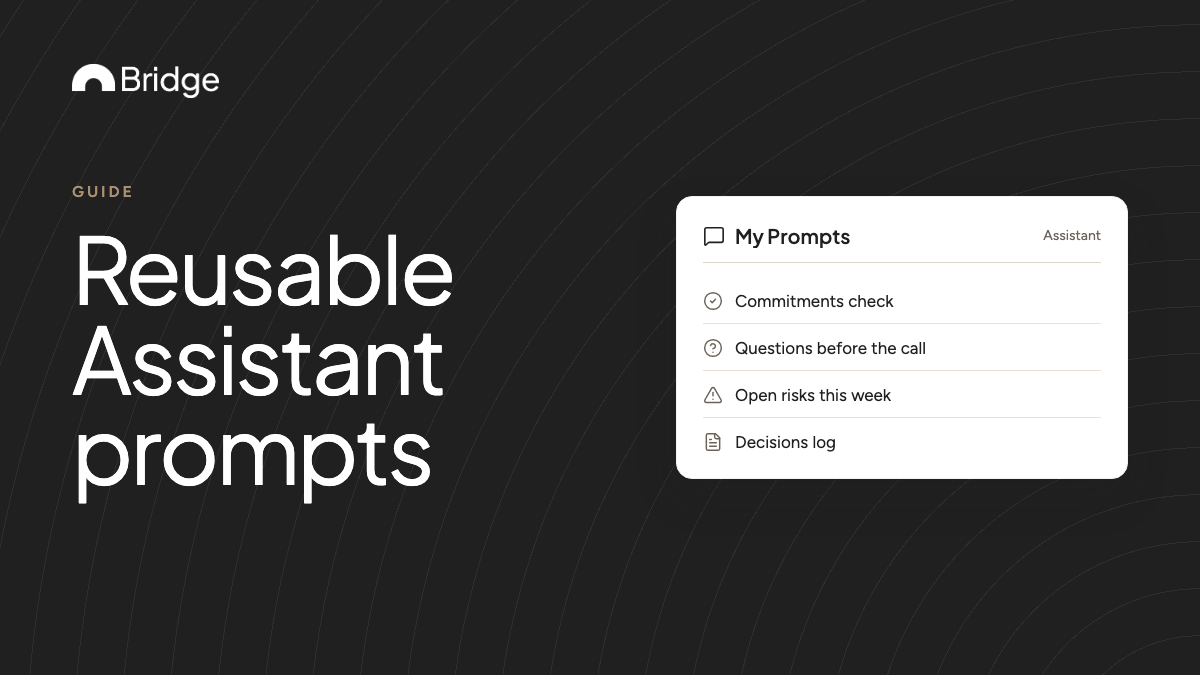
If you type the same request into the Assistant after every client call, save it once as a custom prompt. You give it a display name and the prompt text, then run it from My Prompts whenever you need it. Here is how to set one up, how to write prompts that hold up on real meeting notes, and five you can copy.

Why save a prompt instead of retyping it
Most people ask the Assistant the same few things after a meeting. Draft the follow-up. List who owes what. Flag anything that sounds like a risk.
Retyping those requests costs time, and the wording drifts. One week you ask for owners and dates, the next week you forget the dates. A saved prompt keeps the request identical every time, so the results are easier to compare.
What a custom prompt is
A custom prompt is a reusable request for the Assistant. Each one has two parts:
- Display name: the short label you pick from the menu, such as "Commitments check".
- Prompt text: the full request the Assistant receives when you run it.
Custom prompt or recap template?
Both shape what Bridge gives you after a meeting, but they do different jobs.
| Aspect | Recap template | Custom prompt |
|---|---|---|
| What it shapes | The structure of a meeting's notes | One answer from the Assistant |
| When it runs | When the notes are produced | When you pick it from My Prompts |
| Where it works | Meeting recaps | Every Assistant location: Home, upcoming meetings, live meetings, recaps and spaces |
| Use it for | Sections every meeting of a type needs | Questions you ask often, but not of every meeting |
The same prompt reads different context in each place
Each Assistant is scoped to where you open it. A saved prompt runs against that scope, so write it for the place you'll use it.
- Recap: that completed meeting's notes and transcript.
- Upcoming meeting: the preparation context, such as participants, prior conversations and connected-tool history.
- Live meeting: the live transcript and meeting context so far.
- Space: all meetings in that space.
- Home or the workspace Assistant: your whole workspace, with filters for date, people, labels and space.
Five rules for prompts that work on meeting notes
- Be specific. "What did we decide with Alex last Tuesday?" works better than "summarize".
- Name the output. Say whether you want a table, a short list or an email draft, and how long.
- Ask for evidence. Request a short quote or the speaker's name for each item, so you can check it.
- Say what to do when something is missing. "If no date was agreed, write 'no date'" stops the Assistant from guessing.
- Keep one job per prompt. A prompt that drafts an email and scores a call does both badly.
Five prompts to copy
These are illustrative starting points, not built-in prompts. Adjust the wording to your meetings.
| Display name | Run it on | Prompt text |
|---|---|---|
| Commitments check | A recap | List every commitment made in this meeting as a table: who, what, by when. Quote the line where each was agreed. Write "no date" if none was stated. |
| Questions before the call | An upcoming meeting | From earlier conversations with these attendees, list up to five open questions we still need answered. Note which meeting each came from. |
| Catch me up | A live meeting | Summarize the discussion so far in five bullets. End with any question that was asked and not yet answered. |
| Open risks this week | A space | List risks, blockers or worries raised in this space's meetings this week. Group them by project and name who raised each one. |
| Decisions log | Home, filtered by label | List the decisions made in these meetings, newest first, with the date and the meeting each came from. |
Set up a custom prompt in Bridge
You can edit or delete a prompt from the same place. Custom assistant prompts are included on the Professional and Business plans, not on the free Starter plan. New accounts get a 14-day Professional trial with no credit card.
- Open Account settings → Preferences.
- Under Assistant, open Custom Prompts and create a prompt.
- Enter a display name and the prompt text, then save.
- To run it, open the Assistant menu wherever you are and choose it from My Prompts.
When to build an agent instead
A custom prompt runs only when you choose it. If you want the same request to run on its own, an agent is the better fit.
An agent with the after-every-meeting trigger runs against the recap and transcript as soon as the meeting ends. Agents also need a paid plan. Start with a saved prompt, and turn it into an agent once its results are reliable.
Check your prompts after a few weeks
Run each prompt on a meeting you remember well and compare the answer with what happened. Fix the wording where it guessed, missed items or ran long.
Delete prompts you stopped using. A short My Prompts list is faster to scan than a long one.