
Bridge Assistant
Share meeting notes in Bridge: people, workspace or public link
Unless Recap Auto-Sharing is on, a finished Bridge meeting stays private to its owner until you share it. You can invite people by email, share with your workspace or groups, or turn the recap into a public link. Each option shows a different part of the meeting, so this guide covers what recipients see, the three meeting roles, access requests and recap auto-sharing.

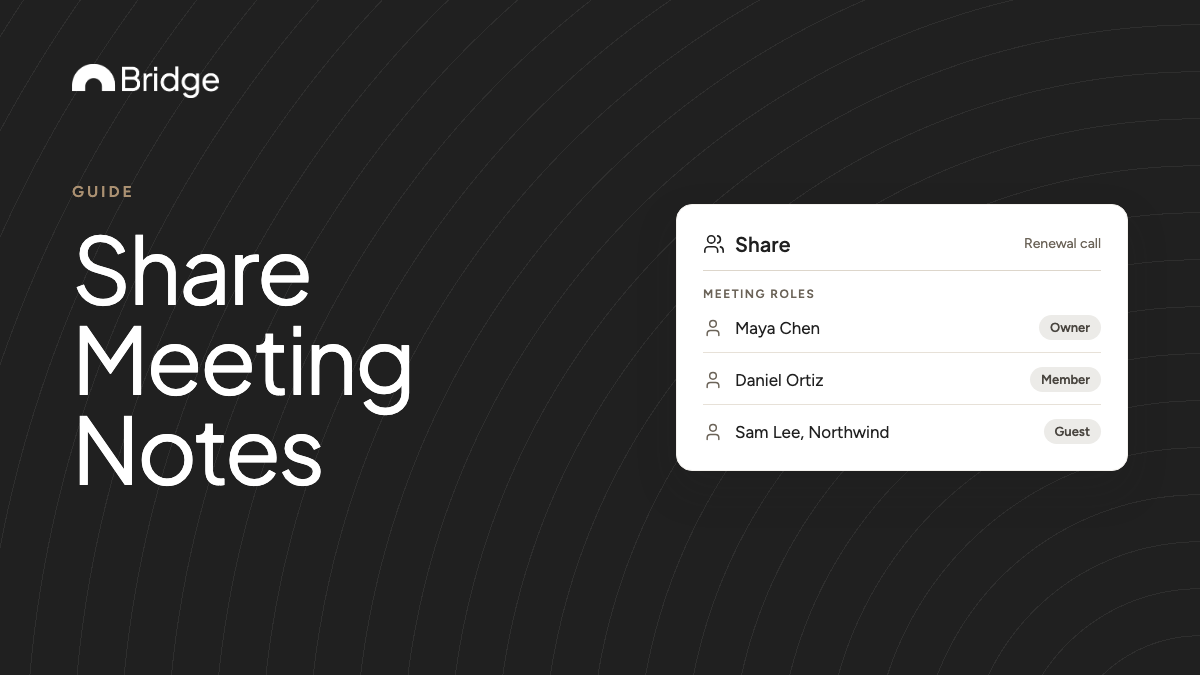
Three ways to share a recap
Open a completed meeting and choose Share in the meeting header. From there you pick who can see it.
There are three options, and they differ in who gets in and how much of the meeting they see:
- Invite by email: only the people you name can open the meeting.
- Workspace: everyone in your workspace, or specific workspace groups on the Business and Enterprise plans.
- Public link: anyone with the link can read the recap, with no account.
Share a meeting, step by step
Everyone you invite gets an email with the overview from the notes: the summary, takeaways and action items. They can open the full recap from that email.
The recap also appears in their own Bridge account straight away, whether or not they open the email.
- Go to Meetings, then Past, and open the meeting you want to share.
- Choose Share in the meeting header.
- Invite people by email, share with your workspace or a workspace group, or convert the recap into a public link.
- Pick the meeting role for the people you share with. People outside your workspace can only be Guests.
The three meeting roles
The role you assign decides what a person can do with the meeting.
- People from outside your workspace can only be Guests.
- Only workspace members can be Owners or Members.
| Role | View meeting | Use Assistant | Edit meeting details | Manage sharing |
|---|---|---|---|---|
| Meeting Owner | Yes | Yes | Yes | Yes |
| Meeting Member | Yes | Yes | Yes | No |
| Meeting Guest | Yes | Yes | No | No |
What each option shows
Sharing a meeting does not share everything attached to it. Your preparation and private notes stay with you.
| Option | What recipients see | What stays private |
|---|---|---|
| Invite by email | Header, Notes, Conversation, Participants and Artifacts | Preparation, Activity, Assistant, Notepad and Memory Profiles |
| Workspace or groups | Header, Notes, Conversation, Participants and Artifacts | Preparation, Activity, Assistant, Notepad and Memory Profiles |
| Public link | Header, Notes and Conversation, read-only | Everything else. The Assistant is not available on the public page |
What recipients can do with the Assistant
People you invite by email or through the workspace can use the Assistant on the shared meeting. Their chats are private to them, and they never see yours.
The meeting also becomes available as context for the recipient's own Workspace Assistant. No participant context is saved to their Memory.
Visitors on a public link can only read. They cannot edit the recap or share it further.
When someone without access opens the link
A person who has the link but no access sees a private screen with a Request Access option instead of the notes.
Requesting access emails the Meeting Owner. The owner can answer from that email:
- Approve as Meeting Member, for people in the same workspace.
- Approve as Meeting Guest, for anyone.
- Deny.
Send recaps automatically
If the same people get your notes every time, turn on Recap Auto-Sharing in Preferences. It runs once the notes are ready after a meeting ends.
You choose who receives the recap, such as the people who attended, or workspace groups on the Business and Enterprise plans. You also choose the kind of link the email carries:
- A link that requires a Bridge account. Recipients get the Guest role by default, and you can change it afterwards.
- A public link that anyone with the link can open.
How auto-sharing and manual sharing combine
- With auto-sharing off, notes stay private to the meeting owner until someone shares them by hand.
- Sharing a meeting by hand overrides or adds to auto-sharing for that meeting.
- The meeting owner can change access at any time.
Sharing through a Space
Add to Space files the meeting in a shared Space. Anyone with access to that Space can open the meeting from the Space's Meetings tab.
A Space adds access. It does not replace the sharing options above.
Access always follows a person's highest role. A meeting Guest who owns the Space gets Owner permissions on that meeting while it lives there. Move the meeting out, and they are a Guest again.
Example: one week, four meetings
This example is illustrative. Maya leads customer success at a fictional company, Acme, and shares four meetings in four different ways.
| Meeting | How Maya shares it | Why |
|---|---|---|
| Renewal call with Northwind | Public link, sent to the client | The client has no Bridge account and only needs the notes and the conversation |
| Escalation review with two engineers | Invite by email, as Members | Only three people need it, and both engineers should be able to edit details |
| Monthly team meeting | Workspace | Everyone at Acme should be able to find it |
| Northwind onboarding sessions | Add to the Northwind Space | The whole account team already has access to that Space |
Before you make a link public
- Anyone who has the link can open it, so treat the link like the document itself.
- A public page shows the Conversation panel as well as the notes. That panel holds the transcript, and the recording when there is one. Check both for anything the recipient should not see.
- If the recipient needs to ask questions about the meeting, invite them as a Guest instead. The Assistant is not on the public page.
- Check workspace groups are on your plan before you plan around them. They need Business or Enterprise.