
Bridge Assistant
Connect Slack to Bridge: meeting context in, updates out
Connecting Slack lets Bridge pull Slack context into Briefs and lets you, or an agent, post meeting updates to channels. Slack context in Briefs needs a connected calendar, because Briefs are built from calendar events. Communication connections are part of Professional and Business. Slack Huddles are captured with the Mac desktop app, not through the Slack connection.

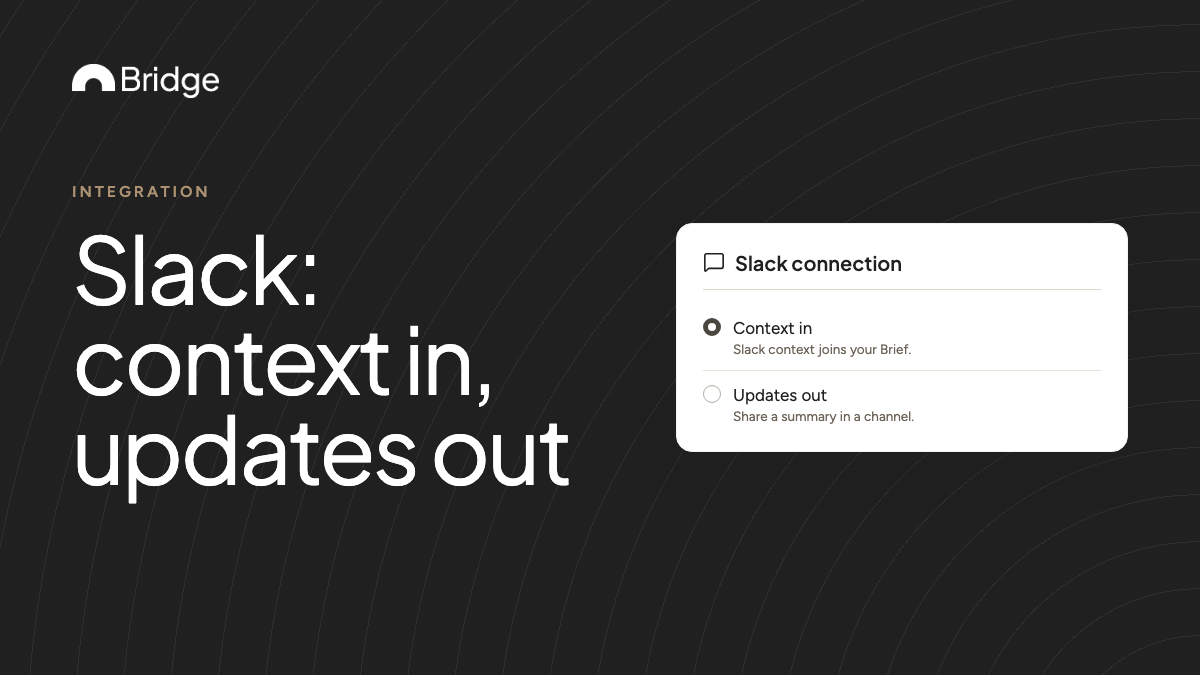
What the Slack connection does
Slack works in two directions. Context comes in before a meeting, and updates go out after it. Decide which one you want first, so you can check it works once you connect.
| Use | What happens | Example |
|---|---|---|
| Context in | Bridge can surface relevant Slack message context into Briefs | A Brief for a launch check-in shows Slack context from the project channel |
| Updates out | The Assistant can post meeting updates and summaries to a Slack channel | After a meeting, the summary goes to the team channel |
| Agents | Agents can summarize a Slack channel or post an update | A scheduled agent posts a daily Slack status update about that day's meetings |
| Notifications | Slack is one of three delivery channels for Bridge notifications, and booking pages can send an optional Slack confirmation to hosts | A booking page tells the assigned host in Slack when someone books |
Before you connect
Two things decide whether you get the full picture.
- A paid Bridge plan. Communication connections, Slack included, are part of Professional and Business, and the free Starter plan doesn't include them.
- A connected Google or Outlook calendar, if you want Slack context in Briefs. Bridge builds a Brief from the calendar event, so Briefs appear automatically only once a calendar is connected.
Connect it
In Bridge, go to Account settings → Connectors → Communication and select Slack. Follow the connect flow to authorize your workspace.
Bridge respects the access you already have in Slack. Agents and automations only interact with the channels, messages and threads you can access.
Slack context in your Briefs
A Brief combines the calendar event, who is attending, and context from earlier conversations and connected tools. Slack is one of those tools, and a source only adds context once it is connected.
Slack context needs a Brief to exist, and a Brief needs a calendar event. If you connect Slack but no calendar, there is nothing for Slack context to attach to. Open an upcoming meeting from Home or Meetings → Upcoming to see whether Slack context appears in its Preparation tab.
Slack actions before, during and after a call
The Assistant offers preset Slack actions at each stage of a meeting once Slack is connected. You can ignore the presets and ask for something different.
- Before a meeting, on an upcoming meeting: share preparation notes and context.
- During a meeting, on a live meeting: post a live update on the discussion. Live actions use what has been discussed so far.
- After a meeting, in the recap: share a summary in a channel.
Example: a launch check-in summary (illustrative)
Say a launch check-in ends with two decisions and one open question. Open the recap's Assistant and ask it to draft a summary for #launch. Read it before you share anything.
Read the draft as someone who wasn't there, and edit it until it holds up. Does it name owners and dates? Does it say the pricing question is still open rather than implying it is settled? Ask for corrections, then ask the Assistant to share it in the channel.
Slack notifications and booking confirmations
Notification delivery through Slack needs a connected workspace. Until you connect one, the Slack column in Account settings → Preferences → Notifications shows Connect Slack. Once connected, choose Slack in that column wherever a cell is enabled.
Booking pages have their own setting. Under a page's automatic notifications, you can send booking confirmations to the assigned hosts in Slack DMs or channels. It is optional.
Capturing Slack Huddles
You can start a huddle in any Slack channel or direct message. Bridge Agent can't join one, because it joins only Zoom, Google Meet and Microsoft Teams.
To capture a Huddle, record it bot-free with the Bridge desktop app, which is for Apple Silicon Macs. Allow microphone, screen and accessibility permissions, then use Record Virtual Audio once a meeting is detected. This is separate from the Slack workspace connection, so you don't need to connect Slack first.
Disconnecting and fixing problems
- To stop Bridge using Slack, go to Account settings → Connectors and disconnect from the Slack card.
- If a workflow-plan step says needs connection, Slack isn't linked yet. Connect it, then approve or activate the step.
- If Slack context doesn't show in a Brief, check the calendar first. Integrations → Calendars should show Google or Outlook as connected, and events can take up to a minute to load after you connect.
- If Bridge can't see a channel, check your own access to it in Slack. Bridge only reaches what you can access.
- If Bridge Agent won't join a Huddle, that's expected. Record Huddles with the desktop app instead.
Stay in control of what gets posted
A post in a channel is visible to everyone in it. Choose channels whose members should see the meeting's content, and read the text before you share it.
For multi-step follow-up, Bridge reads the recap, transcript and action items and proposes a workflow plan. You can approve a step before it runs, or activate it to run immediately. To let a custom agent use Slack, select it as a connected tool on the agent. Workflow plans and agentic workflows need a paid plan.
Sources & further reading
- Bridge help center: Communication integrations ↗
- Bridge help center: Integrations overview ↗
- Bridge help center: Meeting preparation ↗
- Bridge help center: Assistant capabilities ↗
- Bridge help center: Agentic workflows and workflow plans ↗
- Bridge help center: Notifications ↗
- Bridge help center: Preferences ↗
- Bridge help center: Configure booking pages ↗
- Bridge help center: Capture a virtual meeting outside Bridge ↗
- Bridge help center: Platforms ↗
- Bridge help center: Troubleshooting ↗
- Bridge help center: Meeting platforms ↗
- Slack Help Center: Use huddles in Slack ↗
- Bridge pricing ↗