
Bridge Assistant
Build a custom Bridge agent: identity, abilities, tools, triggers
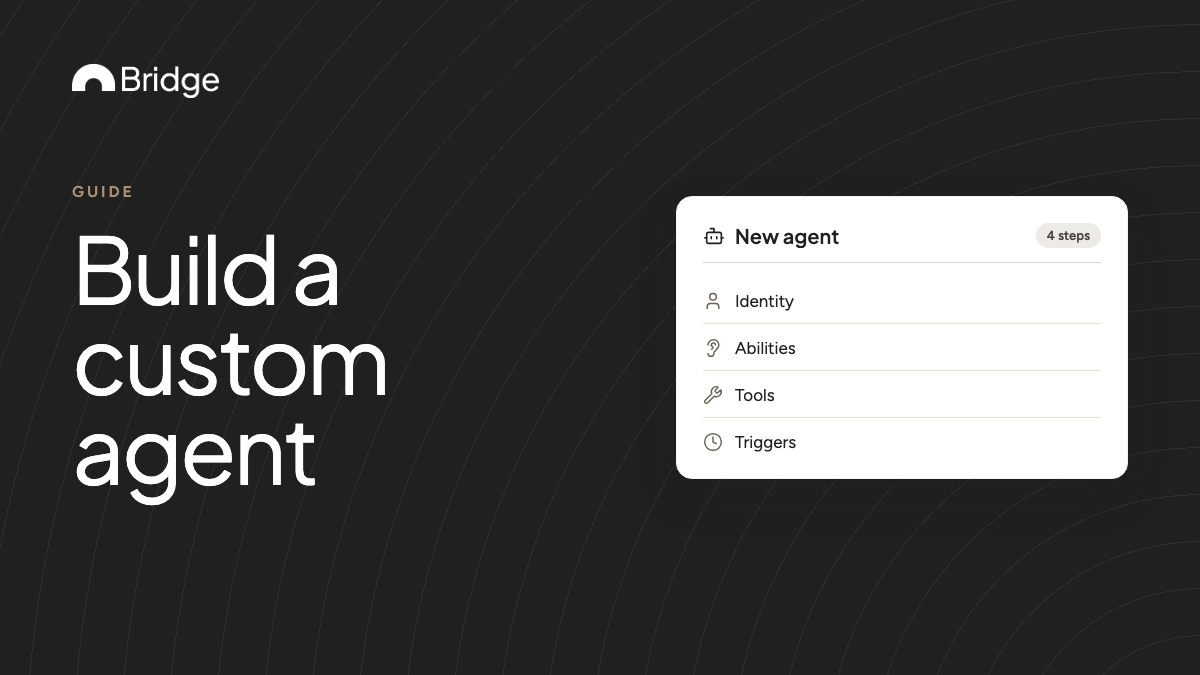
A custom agent is built in four wizard steps: Identity, Abilities, Tools and Triggers. You name it, write its instructions, choose what it can hear, see and use, and pick when it activates. Triggers decide when it runs. Joining a meeting is a separate ability and join policy.

Start the wizard
Creating and using agents requires a paid plan. Select Create Agent from the sidebar, or go to Account settings → Agents.
The wizard has four steps: Identity, Abilities, Tools and Triggers. When you save, the agent appears under Agents.
Step 1: Identity
Identity sets who the agent is and what it does. You can optionally start from a template. Bridge shows six random templates from a pool of 20, including Deal Coach, Facilitator and Fact Checker. A template fills in the name, instructions, avatar and some tool and trigger settings.
- Name: required, up to 60 characters. Bridge shows an @handle preview below the field.
- Instructions: required, up to 4,000 characters. Describe what the agent should do, its role and its constraints.
- Personality: changes the tone and style of its responses.
- Avatar: an image (the default) or a video, which is in beta.
- Visibility: turn on Hide from workspace sidebar to keep your sidebar tidy.
Step 2: Abilities
Abilities control what the agent can perceive and do with meeting data. Every agent can read transcripts, and that is always on.
- Hearing access: the agent hears audio to detect sound, tone and sentiment. This applies to native Bridge meetings, in-person capture and meeting recaps.
- Screen access: the agent sees participants and screen sharing in real time. This applies to native Bridge meetings and meeting recaps.
- Join Bridge meetings and talk: the agent joins Bridge meetings as a voice participant. Meeting participants always see an AI badge on it.
- Join external meetings: the agent joins meetings outside Bridge as a silent participant.
Choose when the agent joins
When you turn on Join Bridge meetings and talk, you set a join policy and pick a voice. Only join when invited is the default policy. Join every meeting adds the agent automatically when a native Bridge meeting starts, unless you remove it in that meeting's Brief.
- Briefs: invite or remove agents in the Participants tab of a pre-meeting Brief.
- Participants panel: select the invite field in a meeting, choose the agent, then click Invite.
- Meeting Assistant: @mention an invite-only agent that is not yet in the call, then click Invite on the prompt that appears.
- Agent profile: select Invite to live meeting while a meeting is in progress.
Step 3: Tools
Tools are the built-in capabilities the agent can use when it responds.
- Web search: look up information on the web.
- Notes search: search previous notes for context.
- Files search: search files from your Knowledge Base.
- Connectors: use your connected integrations, such as calendars, CRMs and productivity apps. Connect apps first. Unconnected ones are disabled in the wizard.
Step 4: Triggers
Triggers decide when the agent activates. Every agent except an external agent answers an @mention in the Assistant, which is always on. The other triggers are optional.
External agents also have an Auto-join setting in this step, where you choose when they join meetings.
| Trigger | When it runs | What to know |
|---|---|---|
| Scheduled | On a recurring schedule | Set the interval, time, start date, end date and timezone. A next-occurrence preview confirms the timing. |
| Proactively during meetings | When the conversation matches its activation trigger | Set a cooldown of 30s, 45s, 60s, 2min or 5min to control how often it speaks. |
| When mentioned by name | When someone says its name in a meeting | Needs the Join Bridge meetings and talk ability. |
| After every meeting | As soon as the meeting ends | Runs against the recap and transcript. |
Activation is not joining
Called-by-name activation needs the agent to already be a voice participant. Proactive activation does not make it join either.
For proactive activation you can enter a custom activation trigger of up to 1,200 characters describing when the agent should jump in. Leave it blank and Bridge generates the trigger from the instructions.
Example: a scheduled follow-up agent
This example is illustrative. You name an agent Follow-up Tracker and write instructions that list open action items and who owns them. In Tools you turn on Notes search.
In Triggers you add a schedule. The agent then runs on that schedule.
Limits to know
- Creating and using agents requires a paid plan.
- Video avatars are in beta and apply only to meetings hosted on Bridge.
- Hearing works in native Bridge meetings, in-person capture and recaps. Screen access works in native Bridge meetings and recaps. Agents cannot see or hear through Zoom, Google Meet or Microsoft Teams meetings.
- Anyone in a meeting can interact with an agent that has joined it.
Sources & further reading
Keep readingGive your Bridge agent an interactive avatar →