
Bridge Assistant
Give your Bridge agent an interactive avatar
Agents in Bridge can now show an interactive, human-like avatar in their meeting tile instead of a still image. You turn it on in the agent's Identity step and pick a face. It works in meetings hosted on Bridge and is in beta.

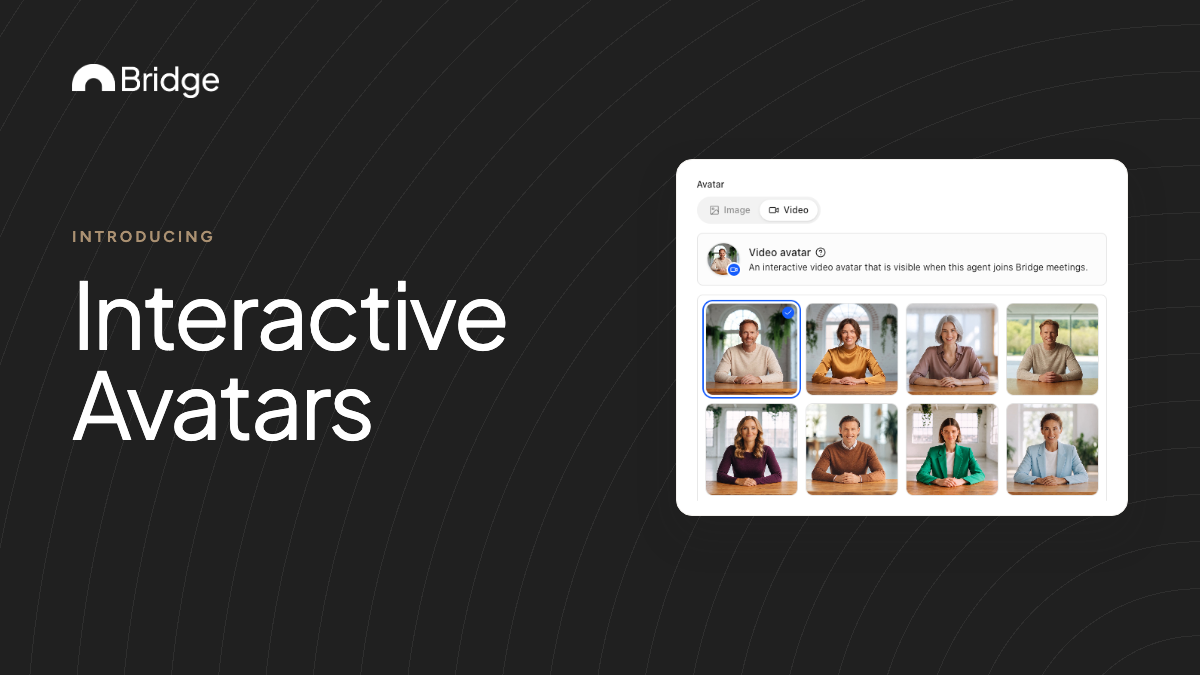
What an interactive avatar changes
Until now, an agent in a Bridge meeting showed a still image in its participant tile. An interactive avatar replaces that image with an interactive, human-like face.
The agent still does the same work. It reads the transcript and speaks when its activation mode says so. The difference is that the people in the call see a face instead of a still image.
The AI badge stays on the agent the whole time, so everyone knows they are talking to an AI participant.
Before you start
- The agent needs Join Bridge meetings and talk turned on, with a join policy and a voice.
- AI agents joining meetings is part of the paid plans (Professional, Business and Enterprise), not the free Starter plan.
- Interactive avatars only appear in meetings hosted on Bridge.
- The feature is in beta, so expect it to change.
Set it up
- Go to Account settings → Agents and open the agent, or choose Create Agent in the sidebar.
- On the Identity step, find Avatar and select Video instead of Image. Video is the interactive avatar option, also called a video avatar.
- Pick a face from the grid. You have to choose one before you can save; if you don't, Bridge sends you back to the Identity step.
- Check the personality. The grid previews the expression that matches it, and changing the personality previews a different expression.
- In Abilities, turn on Join Bridge meetings and talk, choose a join policy and pick a voice. You can preview each voice.
- Save the agent.
Choose a face that fits the job
Pick the expression that matches the agent's personality and what it does in the meeting. An agent that keeps the meeting on its agenda is a different presence from one that checks facts when asked.
Use the personality preview as your check. If the face in the grid doesn't look like the agent you described in its instructions, adjust the personality or pick another face.
What participants see in the meeting
Invite the agent the usual way: from the meeting's Participants panel, from the Brief, with an @mention in the meeting Assistant, or from the agent's profile. Agents set to join every meeting join when the meeting starts.
| Moment | What shows in the agent's tile |
|---|---|
| The agent joins | Its image avatar with the message Starting video avatar… |
| The interactive avatar starts | The human-like face replaces the image |
| The whole time | The AI badge on the agent |
Limits in the beta
- Bridge meetings only. External agents that join Zoom, Google Meet or Microsoft Teams calls don't get an interactive avatar.
- A face is required. An agent with no interactive avatar face joins with its still avatar only.
- Beta. Behavior may change as the feature develops.
Habits that help
- Tell guests at the start that an AI agent is in the call and what it's there to do, even though the AI badge shows.
- Give the agent a clear, sayable name. Bridge builds its @handle from the name, and people use the name to call on it.