
Bridge Assistant
Keep track of the people and companies you meet in Bridge
Bridge builds a profile for each person and company you meet, from your meetings and calendar. A person's profile shows who they are, a timeline of your meetings with them and your private notes. A company's profile shows a generated summary, its people and your notes. This post explains how profiles are created, what is on them, who can see what, and how to use them before a call.

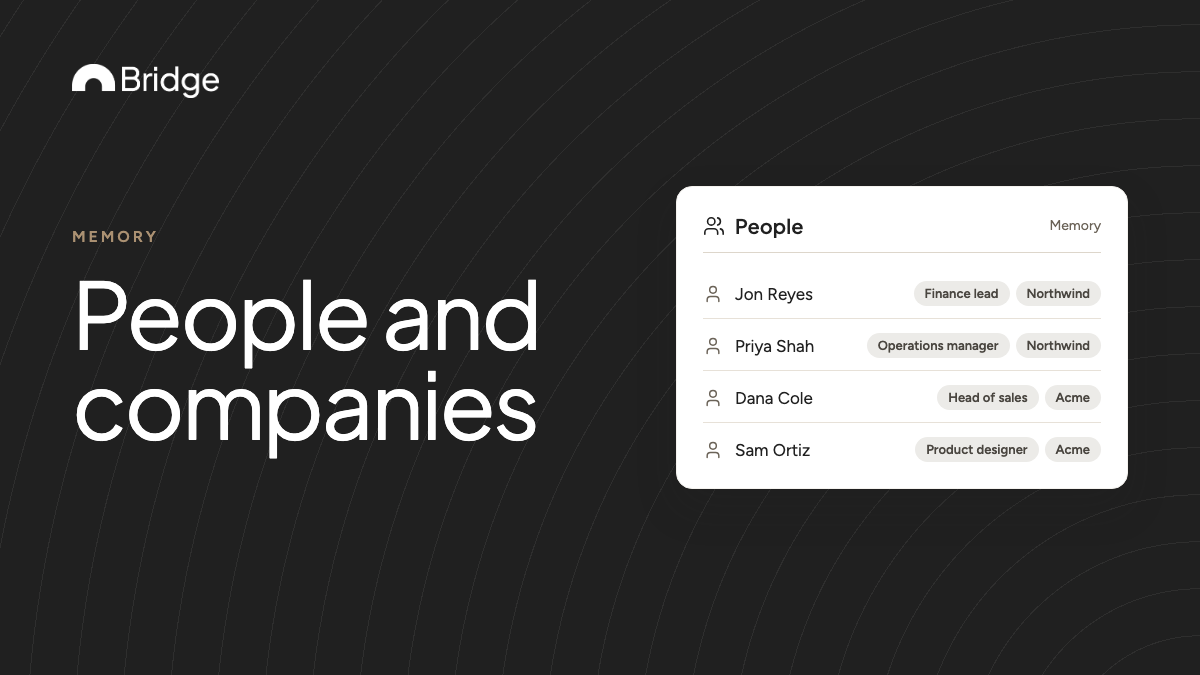
What People and Companies are
Memory is the long-lived layer of a Bridge workspace. It holds who you meet, which companies they belong to, and the questions you want answered the same way every time.
People and Companies are the first two. Each one is a profile that outlasts any single meeting, so what you learn about a customer in March is still there in September.
Profiles are created for you
You do not need to add people by hand. Bridge builds Memory profiles automatically from your meetings and calendars.
Only one profile is created per email address or company domain. Meet the same person ten times and you get one profile with ten meetings on it, not ten records.
Company profiles are generated from meeting and calendar context, and the people from your meetings are connected to their company automatically.
Find a profile
- Click Memory in the sidebar, then People or Companies.
- Use the search box at the top of the list. You can filter by visibility and change the sort order.
- Click a row to open the profile.
- You can also open a person from Members in the sidebar or from a meeting, then go on to their Memory profile.
What a person's profile shows
The profile shows the person's photo, name, email, title and company. Timezone, industry, location, job history and education appear when available. The company links to its own profile.
| Area | What it holds |
|---|---|
| About | A short bio the person wrote on their own Bridge profile, when present, then a generated summary and their job and work history |
| Meetings | A timeline of your meetings with this person. Click any item to open it. |
| Notepad | Free-form notes that save automatically |
| Quick actions | Start a video or audio call, schedule a meeting, or ask the Assistant about the person |
| Contact links | Email, LinkedIn, Twitter and GitHub |
What a company's profile shows
A company profile shows the logo, name and industry, with links to its website and LinkedIn.
- Research: a generated summary of the company.
- People: the people in your workspace linked to this company. Click one to open their profile.
- Notepad: free-form notes that save automatically.
Public details and private context
Every profile has two layers, and it helps to know which is which before you type a note.
- Public details are job and work history context enriched from public sources.
- Private context is your meeting context and your Notepad notes. It remains private to each individual.
Claimed and unclaimed profiles
A profile is unclaimed when no Bridge account matches its email address.
It becomes claimed when that person creates a Bridge account with the same email. Once a profile is claimed, the person can edit the public details that others see.
Choose who can see a profile
On a record, set access to Private, Group or Workspace.
- With Group and Workspace, Activity and Notepad are not shared. Your notes stay yours.
- To change many records at once, use bulk select and set visibility across them.
| Setting | Who can see the profile | Note |
|---|---|---|
| Private | Only you | |
| Group | Members of the workspace groups you select | Requires a Business or Enterprise plan |
| Workspace | Everyone in the workspace |
Example: before a renewal call
This example is illustrative. Maya manages accounts at Acme, a fictional company. She has a renewal call on Thursday with Jon from Northwind, also fictional.
She opens Jon's profile. The Meetings timeline shows four calls since spring. Her Notepad reminds her that Jon has a new manager and prefers written proposals.
She opens Northwind's company profile and sees two colleagues of Jon's under People, from an onboarding call. She asks the Assistant about Jon from his profile, then writes two questions for Thursday in the Notepad.
Where profiles show up elsewhere
- Live transcripts: speaker names improve when Bridge knows the participants, including people in Memory.
- Spaces: a space has People and Companies areas for the participants and companies tied to its meetings.
- Captured meetings: calls you capture on other platforms feed Memory too, not only meetings hosted on Bridge.
Limits to know
- Memory is only available on paid plans.
- Group visibility requires a Business or Enterprise plan.
- Memory profiles cannot be deleted at this time.
- Public details come from public sources, so check a title or employer before you rely on it in a meeting.
- A generated summary is a starting point. Your own notes from real conversations are the part worth keeping current.