
Bridge Assistant
Manage your Bridge meeting links in one place
Every Bridge meeting link you create is kept in the Meeting Links tab in Scheduling. From there you can search for a link, copy it, join it, rename it, set its host controls or delete it. This guide walks through each action and explains what deleting a link does to calendar invites that already contain it.

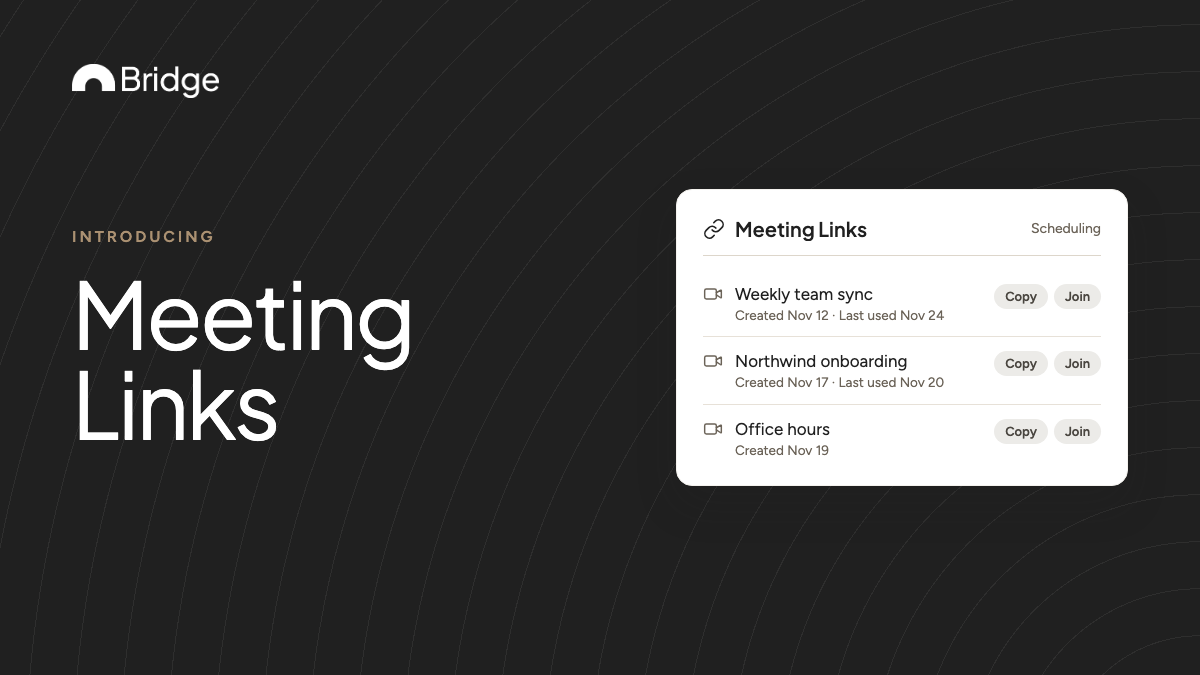
What the Meeting Links tab is
The Meeting Links tab is a library of every Bridge meeting link you have created. It sits in Scheduling, next to Booking Pages.
The two tabs do different jobs. Booking Pages publishes availability that other people can book. Meeting Links manages the links themselves, so a link you reuse every week has a name and its own settings.
How links get into the list
You do not add links to the tab by hand. A link appears in the list as soon as you create it in either of these ways:
- From the New menu: select New, then Meeting on Bridge, then Create meeting link. Bridge generates a unique link you can share or add to a calendar event.
- While scheduling on your calendar: select New, then Meeting on Bridge, then Schedule on calendar. Google Calendar or Microsoft Outlook opens with a unique meeting link already added to the event.
What each row shows
Each link is one row. A row tells you enough to recognize the link without opening it.
| Field | What it shows |
|---|---|
| Display name | The name the link has in your list |
| Link URL | The address, shown without the https:// scheme |
| Created | The date you created the link |
| Last used | The date the link was last used, once it has been used at least once |
Find, copy or join a link
Use the Search meeting links field to filter the list. Search matches the display name, the calendar title or the link URL.
That last match is the useful one. If someone sends you a Bridge link and you are not sure which meeting it belongs to, paste it into search to find its row.
Each row has two quick actions:
- Copy puts the full link on your clipboard. The button briefly changes to Copied, with a "Link copied" confirmation.
- Join opens the meeting from that link.
Rename a link
A name such as "Weekly team sync" is easier to find than a URL. Renaming changes only how the link is labelled in your list. The URL stays the same, and no calendar events are touched.
- Open the row's overflow menu and choose Rename Link. The Rename meeting link dialog opens.
- Type a name of up to 120 characters and save. You see a "Meeting link renamed" confirmation.
- To go back, use Reset name. It restores the original name on a link that has a custom one.
Set host controls for one link
Host controls on a link are meeting settings that belong to that link and apply every time it is used. Open Host controls from the row's overflow menu.
This is the change that arrived with the tab. Each meeting link can carry its own host controls instead of inheriting a single account-wide default, so different links can behave differently.
Settings are inherited in this order: account preferences, then meeting link preferences, then session preferences. A session picks up the changes you make on its link.
A change you make in session preferences during one meeting applies to that meeting only.
Which level to change
Account-wide conferencing defaults, including host controls and background effects, stay in Preferences.
| You want to change | Where to change it |
|---|---|
| The default for every meeting you host | Account settings, then Preferences |
| Every meeting that uses one link | Host controls on that link, in the Meeting Links tab |
| One meeting only | Session preferences for that meeting |
Delete a link, and what that breaks
Open the row's overflow menu and choose Delete link. Review the "Delete this meeting link?" dialog and confirm. You see a "Meeting link deleted" confirmation.
Deleting is permanent. It invalidates the link, and no one can join with it again. That includes calendar invites that already contain the link.
Recaps from past meetings are kept, so you do not lose notes by deleting a link.
- Before you delete, search your calendar for events that still use the link.
- If you only want a tidier list, rename the link instead.
Example: three links for three jobs
This example is illustrative. Dana runs customer onboarding at a fictional company, Acme, and keeps three named links.
- "Weekly team sync": a link in a recurring calendar event. Dana renamed it so it is easy to find and copy.
- "Northwind onboarding": a link shared with one customer for the length of a project. When the project ends, Dana checks the calendar for remaining events and then deletes it.
- "Office hours": a link Dana posts publicly. Dana set its host controls once, on the link, so every session starts the same way.
Good to know
- Renaming never changes the URL, so you cannot use it to make an old link stop working. Delete the link for that.
- A deleted link cannot be restored. Create a new link and update your invites.
- The Last used date appears only after a link has been used once.