
Bridge Assistant
Run a Bridge agent after every meeting or on a schedule
Two agent triggers run without anyone typing an @mention: After every meeting runs against each meeting's recap and transcript, and Scheduled runs on the interval you set. For one completed meeting you can instead generate a workflow plan. Triggers and workflow plans need a paid plan.

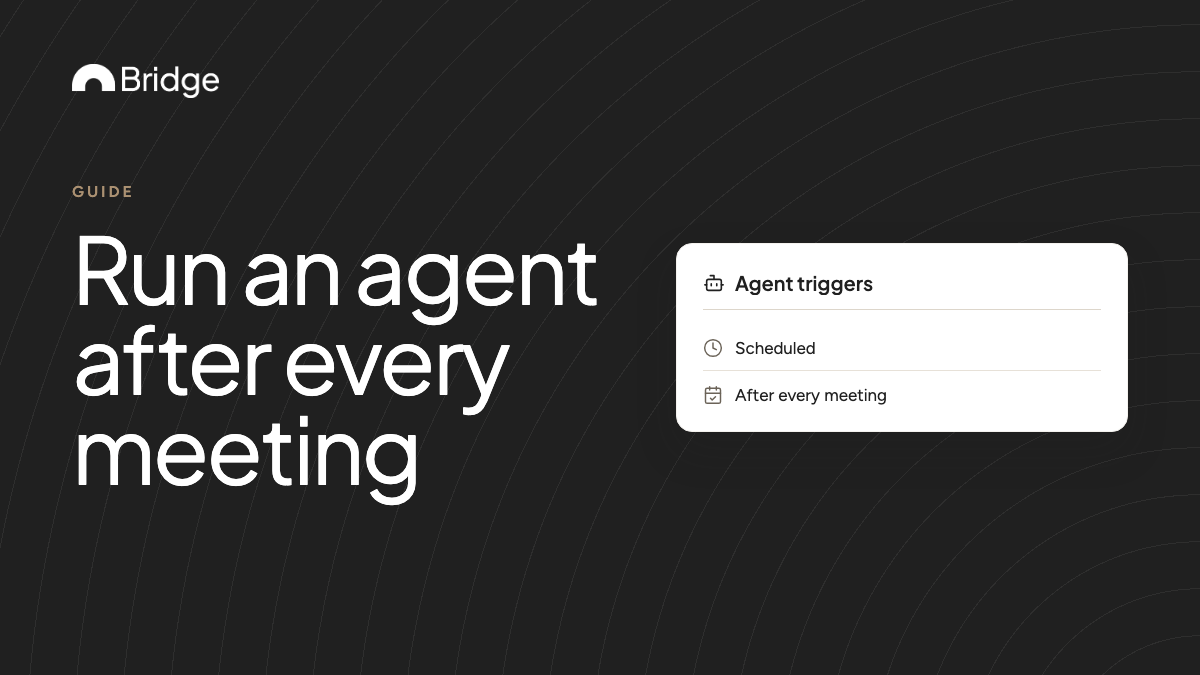
Two triggers and one on-demand plan
Besides @mention, an agent has four triggers: proactively during meetings, when mentioned by name, after every meeting and on a schedule. This page covers the last two, plus the workflow plan you generate yourself from a completed meeting.
Agentic workflows and workflow plans require a paid plan. Free plans can use only @mention activation.
Compare the three options
Pick by when you want the work to happen.
| Option | When it runs | What to know |
|---|---|---|
| After every meeting trigger | As soon as a meeting ends | Works from each meeting's recap and transcript, so it needs a stop rule in its instructions. |
| Scheduled trigger | On a recurring schedule | Repeats at the interval you set. Check the next-occurrence preview before you save. |
| Workflow plan | When you ask, for one completed meeting | Bridge proposes steps from the meeting's action items. You can approve, revise or skip each agent step, or activate the whole plan. |
Add a trigger to an agent
Open the agent's settings page and scroll to the Triggers section. Choose a trigger type, set its options and save. The agent then runs automatically according to the configuration.
You can also set triggers in the last step of the agent wizard. The full wizard is in the related guide.
After every meeting
This trigger runs the agent against the recap and transcript as soon as the meeting ends. It suits post-meeting follow-ups, email automation, scheduling and notifications.
Because it runs against every meeting recap, write the instructions so the agent knows when to stop. We suggest ending them with a line such as "If this wasn't a client meeting, do nothing."
Scheduled
A scheduled agent runs on the schedule you set: every few days, weeks or months. Confirm the next-occurrence preview matches what you expect before you save.
If you enabled Notes search for the agent, it can use it to search previous notes for context. Scheduled results appear on the workspace Assistant page and under Chats in the sidebar.
Use a workflow plan for one meeting
Open a completed meeting's Assistant and choose Plan and execute next steps, or select Workflow from the toolbar menu. Bridge adds a Workflow Plan card with agent steps and steps for you.
For each agent step you can Activate, Approve, Revise or Skip. Activate Plan runs all agent steps at once. The step-by-step walkthrough is in the action items guide.
Which should you pick?
- Same follow-up after every meeting: After every meeting trigger, with a stop rule in the instructions.
- Recurring work that does not depend on one meeting: Scheduled trigger.
- One meeting whose action items need different steps: workflow plan.
Find agents that run automatically
In Account settings → Agents, open the filter menu next to the search field. Its Triggers group includes Scheduled and Post-Meeting, so you can narrow the list to agents on a schedule or agents that run after meetings.